

Create Unique Landing pages with this template.
Hero Title
Create Unique Landing pages with this template.
[gravityform id=”1″ title=”false” description=”false” ajax=”false”]

Section Title
Dark Row with Text Left
You can optionally style your text using the toolbar at the top of the editor. If no formatting is applied, the text will default to the standard body style. The same is true for hyperlinks; if no URL is assigned to your highlighted text, it will remain as plain text.
Yellow Section Title
You can optionally style your text using the toolbar at the top of the editor. If no formatting is applied, the text will default to the standard body style. The same is true for hyperlinks; if no URL is assigned to your highlighted text, it will remain as plain text.
Section Title
Light Row with Text Left
Add the class one of the following classes in the Row’s Extra Class Names field to add accent lines on sections.
accent-line-top-leftaccent-line-top-middleaccent-line-top-rightaccent-line-bottom-leftaccent-line-bottom-middleaccent-line-bottom-right
The default colour is red. add one of the following classes to change the colours of the accent lines for each section: teal, yellow, blue or navy
Section Title
Dark Row with Text Right
You can optionally style your text using the toolbar at the top of the editor. If no formatting is applied, the text will default to the standard body style. The same is true for hyperlinks; if no URL is assigned to your highlighted text, it will remain as plain text.
White Section Title

Bullet Point Example
Bullet Point Example
Bullet Point Example
Bullet Point Example
Section Title
Light Row with Text Right
You can optionally style your text using the toolbar at the top of the editor. If no formatting is applied, the text will default to the standard body style. The same is true for hyperlinks; if no URL is assigned to your highlighted text, it will remain as plain text.
Dark Section Title
You can optionally style your text using the toolbar at the top of the editor. If no formatting is applied, the text will default to the standard body style. The same is true for hyperlinks; if no URL is assigned to your highlighted text, it will remain as plain text.
Section Title
Dark Text Left Image Center Right
You can optionally style your text using the toolbar at the top of the editor. If no formatting is applied, the text will default to the standard body style. The same is true for hyperlinks; if no URL is assigned to your highlighted text, it will remain as plain text.
Section Title
Light Text Left Image Center Right
You can optionally style your text using the toolbar at the top of the editor. If no formatting is applied, the text will default to the standard body style. The same is true for hyperlinks; if no URL is assigned to your highlighted text, it will remain as plain text.
Blue Section Title
Bullet Point Example
Bullet Point Example
Section Title
Dark Text Right Image Center left
You can optionally style your text using the toolbar at the top of the editor. If no formatting is applied, the text will default to the standard body style. The same is true for hyperlinks; if no URL is assigned to your highlighted text, it will remain as plain text.
Teal Section Title
- Bullet Point Example
- Bullet Point Example
- Bullet Point Example
- Bullet Point Example
Section Title
Light Text Right Image Center left
You can optionally style your text using the toolbar at the top of the editor. If no formatting is applied, the text will default to the standard body style. The same is true for hyperlinks; if no URL is assigned to your highlighted text, it will remain as plain text.
Section Title
Dark Text Left Image Full Right
You can optionally style your text using the toolbar at the top of the editor. If no formatting is applied, the text will default to the standard body style. The same is true for hyperlinks; if no URL is assigned to your highlighted text, it will remain as plain text.
Section Title
Light Text Left Image Full Right
You can optionally style your text using the toolbar at the top of the editor. If no formatting is applied, the text will default to the standard body style. The same is true for hyperlinks; if no URL is assigned to your highlighted text, it will remain as plain text.
Section Title
Dark Text Right Image Full left
You can optionally style your text using the toolbar at the top of the editor. If no formatting is applied, the text will default to the standard body style. The same is true for hyperlinks; if no URL is assigned to your highlighted text, it will remain as plain text.
Teal Section Title
- Bullet Point Example
- Bullet Point Example
- Bullet Point Example
- Bullet Point Example
Section Title
Light Text Right Image Full left
You can optionally style your text using the toolbar at the top of the editor. If no formatting is applied, the text will default to the standard body style. The same is true for hyperlinks; if no URL is assigned to your highlighted text, it will remain as plain text.
Teal Section Title
- Bullet Point Example
- Bullet Point Example
- Bullet Point Example
- Bullet Point Example
Section Title
Card with Dark Background Gravity Form
You can optionally add content to the left column using the Text Block element. If the text area is left blank, the left side of this row will remain empty. Similarly, you must select a form within the Gravity Forms element on the right; if no form is selected from the dropdown, the right side will not display.
General Inquiries
+1 866 979-8326
[gravityform id=”1″ title=”false” description=”false” ajax=”true”]
Section Title
Card with Light Background Gravity Form
You can optionally add content to the left column using the Text Block element. If the text area is left blank, the left side of this row will remain empty. Similarly, you must select a form within the Gravity Forms element on the right; if no form is selected from the dropdown, the right side will not display.
General Inquiries
+1 866 979-8326
[gravityform id=”1″ title=”false” description=”false” ajax=”true”]
Section Title
Image Background Gravity Form
You can optionally add content to the left column using the Text Block element. If the text area is left blank, the left side of this row will remain empty. Similarly, you must select a form within the Gravity Forms element on the right; if no form is selected from the dropdown, the right side will not display.
General Inquiries
+1 866 979-8326
[gravityform id=”1″ title=”false” description=”false” ajax=”true”]
Section Title
Light Case Studies Row
In the Post Loop Builder element below use the ‘Narrow data source’ setting to select specific categories or projects for this row. If you leave this blank, the section will automatically pull in all case studies. To limit the number of items shown, simply update the ‘Posts Per Page’ value; otherwise, the full list will appear.
Sustainability for the FIFA World Cup 2022
Sustainability for the FIFA World Cup 2022
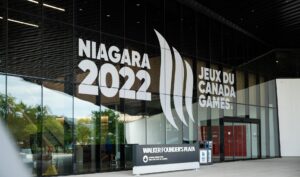
Niagara 2022 Canada Games
Niagara 2022 Canada Games
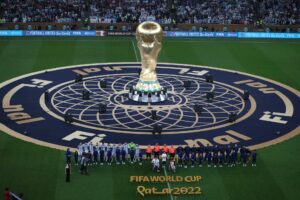
FIFA World Cup Qatar 2022
FIFA World Cup Qatar 2022
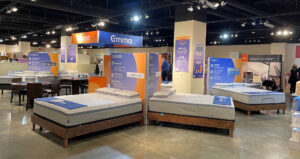
Emma Sleep
Emma Sleep
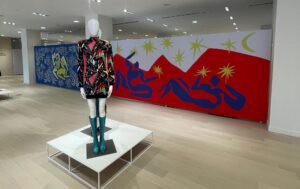
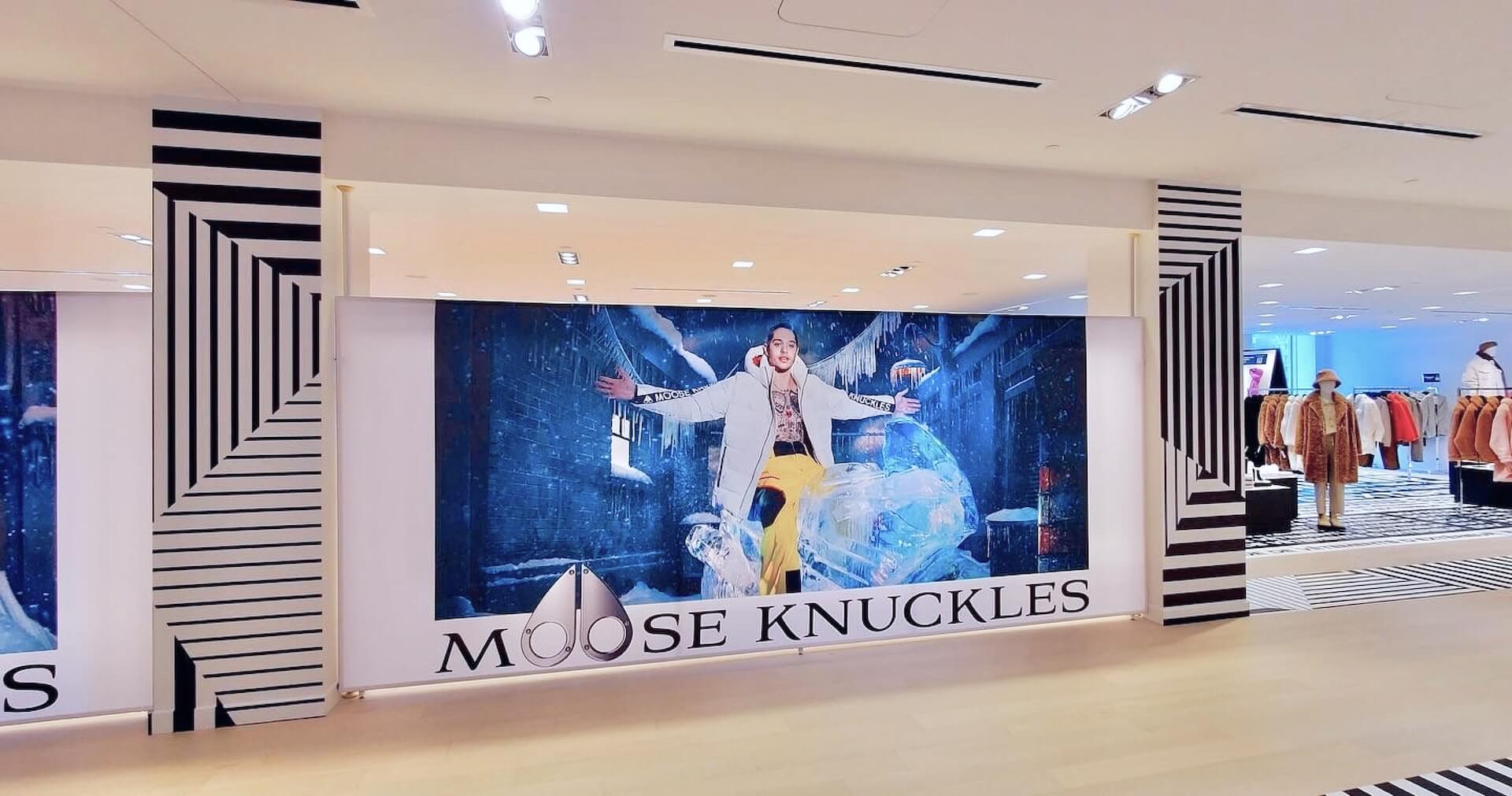
Holt Renfrew Ogilvy
Holt Renfrew Ogilvy
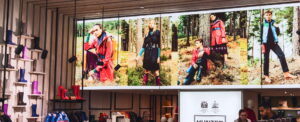
Hunter Boots
Hunter Boots
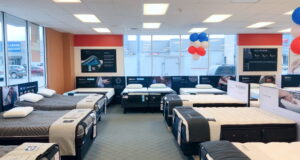
Mattress Firm
Mattress Firm
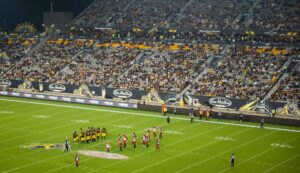
Tim Hortons
Tim Hortons
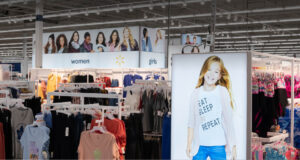
Walmart
Walmart
Brandt Industries Ltd
Brandt Industries Ltd
Saskatchewan Roughriders
Saskatchewan Roughriders
Section Title
Dark Case Studies Row
In the Post Loop Builder element below use the ‘Narrow data source’ setting to select specific categories or projects for this row. If you leave this blank, the section will automatically pull in all case studies. To limit the number of items shown, simply update the ‘Posts Per Page’ value; otherwise, the full list will appear.
Sustainability for the FIFA World Cup 2022
Sustainability for the FIFA World Cup 2022
Niagara 2022 Canada Games
Niagara 2022 Canada Games
FIFA World Cup Qatar 2022
FIFA World Cup Qatar 2022
Emma Sleep
Emma Sleep
Holt Renfrew Ogilvy
Holt Renfrew Ogilvy
Hunter Boots
Hunter Boots
Mattress Firm
Mattress Firm
Tim Hortons
Tim Hortons
Walmart
Walmart
Brandt Industries Ltd
Brandt Industries Ltd
Saskatchewan Roughriders
Saskatchewan Roughriders
Section Title
Light Video Row Text Right
You can add a custom thumbnail using the Video Preview Image in the Video Lightbox element. If this field is left blank, the video will not have a cover image. You must include a valid YouTube link in the Video URL section for the video to play. If the URL is left blank, the preview image will remain static and the lightbox effect will be disabled.
Section Title
Dark Video Row Text Right
You can add a custom thumbnail using the Video Preview Image in the Video Lightbox element. If this field is left blank, the video will not have a cover image. You must include a valid YouTube link in the Video URL section for the video to play. If the URL is left blank, the preview image will remain static and the lightbox effect will be disabled.
Section Title
Light Video Row Text Left
You can add a custom thumbnail using the Video Preview Image in the Video Lightbox element. If this field is left blank, the video will not have a cover image. You must include a valid YouTube link in the Video URL section for the video to play. If the URL is left blank, the preview image will remain static and the lightbox effect will be disabled.
Section Title
Dark Video Row Text Left
You can add a custom thumbnail using the Video Preview Image in the Video Lightbox element. If this field is left blank, the video will not have a cover image. You must include a valid YouTube link in the Video URL section for the video to play. If the URL is left blank, the preview image will remain static and the lightbox effect will be disabled.
Testimonials
Light Testimonial Block
Lorem ipsum dolor sit amet, consectetuer adipiscing elit, sed diam nonummy nibh euismod tincidunt ut laoreet dolore magna aliquam.
Testimonials
Dark Testimonial Block
Lorem ipsum dolor sit amet, consectetuer adipiscing elit, sed diam nonummy nibh euismod tincidunt ut laoreet dolore magna aliquam.
Section Title
Light Call To Action
Lorem ipsum dolor sit amet, consectetuer adipiscing elit, sed diam nonummy nibh euismod tincidunt ut laoreet dolore magna.
Section Title
Light Call To Action
Lorem ipsum dolor sit amet, consectetuer adipiscing elit, sed diam nonummy nibh euismod tincidunt ut laoreet dolore magna.

Title Here
This is example body copy, to be edited & entered for this section. It can be very short or very large, depending on requirements.

Title Here
This is example body copy, to be edited & entered for this section. It can be very short or very large, depending on requirements.

Title Here
This is example body copy, to be edited & entered for this section. It can be very short or very large, depending on requirements.

Title Here
This is example body copy, to be edited & entered for this section. It can be very short or very large, depending on requirements.


Title Here
This is example body copy, to be edited & entered for this section. It can be very short or very large, depending on requirements.